Background & Motivation #
Recently, I dug out my old iPad Air 2. Its battery is mostly worn out, requiring it to stay plugged into power constantly, and its functionality is limited because most modern apps require a newer iOS version.
I wanted to use it as an external monitor for my Mac Mini. However, Apple’s native protocol—Sidecar—only supports devices as the iPad Air 3.
I looked into several alternative applications:
- Duet Display: Requires a paid subscription.
- Spacedesk: Windows only.
- OpenDisplay: Free and open-source, but requires iOS 17+.
None of these worked for my older setup until I came across this excellent guide:
👉 使用 Moonlight 把 Android 平板/iPad 當作 Windows/Linux 電腦的第二螢幕 by Ivon
It explains how to use Sunshine and Moonlight to turn a tablet into a secondary monitor. Here is how I set it up on macOS.
Step 1: Create a Virtual Screen on macOS #
Normally, you would use a physical HDMI dummy plug to trick a PC into creating a display output. Fortunately, you can do this entirely in software for free on macOS using BetterDisplay:
Note: BetterDisplay v5.x requires macOS 26. Since I am on macOS 15.6, I used version v4.4.5.
-
Go to System Settings > Privacy & Security > Accessibility and toggle BetterDisplay ON.
-
Set the aspect ratio to match your tablet (e.g.,
4:3for iPad).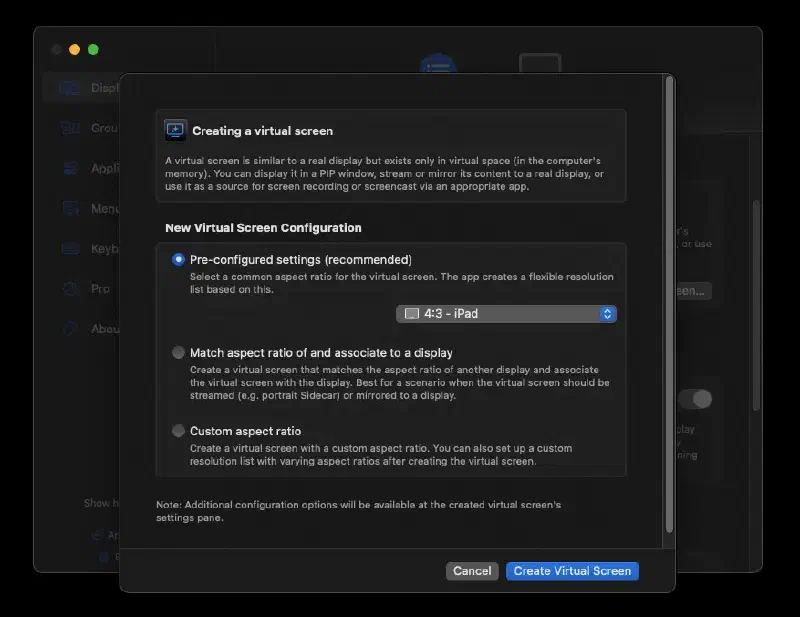
-
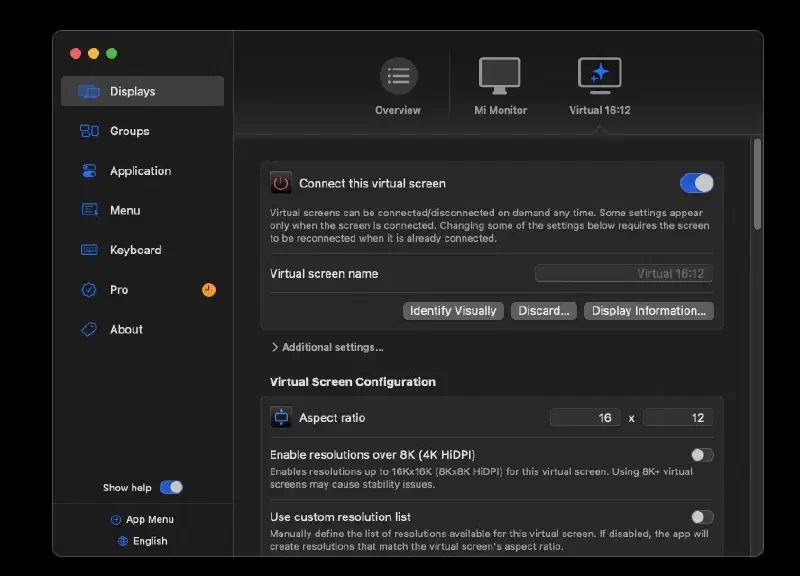
Under the Virtual Screen settings, click Connect Virtual Screen to enable the Virtual Screen.
Step 2: Install & Configure Sunshine #
Install Sunshine on macOS using Homebrew by tapping and trusting the LizardByte repository:
after that install sunshine on mac mini, it need adds and trust the official LizardByte third-party repository (tap):
brew tap LizardByte/homebrew
brew trust lizardbyte/homebrew
brew install sunshine
Start the Sunshine service:
brew services start lizardbyte/homebrew/sunshineAccess the Sunshine Web UI at https://localhost:47990. Grant Screen Recording Permissions
If Sunshine fails to capture your display, grant it the proper permissions:
Open System Settings > Privacy & Security

>Screen & System Audio Recording (or Screen Recording).

Locate Sunshine in the list and toggle the switch ON.
Restart the Sunshine service:
brew services restart sunshineMap the Virtual Display #
In the Sunshine Web UI, go to Troubleshooting and check the logs for a line like: Info: Detected display: Virtual 16:12 (id: 4) connected: true
Go to Audio/Video > Display Id and enter the corresponding ID (e.g., 4).
Step 3: Connect via Moonlight on iPad
Install Moonlight from the App Store on your iPad.

Ensure your iPad is on the same local network and scan for host devices.

Select your Mac and enter the PIN provided in the Sunshine Web UI to pair.

Recommended Moonlight Settings:

Stream Audio: Turn OFF

(useful when as silent secondary monitors).

Resolution: Set to native/full resolution.

Input Mode: Set to Touchscreen Mode.