Introduction#
Previously, I relied entirely on Firefox’s built-in password manager across both desktop and mobile devices. For basic web browsing, this native solution worked reasonably well. However, as my workflow expanded across multiple platforms, operating systems, and native application environments, I ran into critical limitations that prompted a shift toward Bitwarden.
The 2FA & TOTP Fragmentation Problem#
Two-Factor Authentication (2FA) is now essential for securing digital accounts. Originally, while on Android, I relied on Aegis Authenticator for generating TOTP codes. Aegis is excellent because it allows simple, unencrypted or encrypted local exports via plain text or JSON files.
However, when switching between Android and iOS, issues emerged:
- Lack of Cross-Platform Support: Aegis is Android-exclusive. Switching to iOS forced me to adopt Google Authenticator or other similar application.
- Export Lock-In: Google Authenticator does not provide simple text-based key exports like Aegis. Transferring seeds between devices becomes cumbersome.
- Multi-Device Friction: On one occasion, I registered a new AWS account using an iPhone and set up 2FA via Google Authenticator. Later, when switching back to Android, I was blocked from logging in because the 2FA seed was trapped on the iOS device.
To solve this, I introduced Bitwarden Authenticator as a cross-platform backup and secondary 2FA manager.
Key Friction Points with Native Managers#
1. Inability to Record Logins inside Mobile Apps#
Browser-based password managers cannot effectively capture credentials generated inside native mobile applications. While mobile operating systems (iOS and Android) provide native credential saving, managing passwords across system keychains introduces sync issues:
- Stale Credentials: Updating a password on a desktop web portal does not automatically update the credentials stored in the mobile OS keychain.
- No Unified Source of Truth: Storing credentials across disparate system keychains creates credential drift.
2. Vendor Lock-In & Restricted Data Exports#
Proprietary services—such as Google Authenticator and Google Password Manager—do not easily allow users to export raw seed data or credentials in open formats. In contrast, Bitwarden provides straightforward JSON and CSV export capabilities for local offline backups.
3. Weak Default Browser Vault Security#
While Firefox allows you to protect saved credentials, security features are disabled by default. Signing into a new device (like a tablet) to sync bookmarks or browsing history exposes your unencrypted password vault unless additional protections are configured (like choose not to sync passwords).
Securing the Firefox Password Vault#
To prevent unauthorized access on shared or secondary devices, Firefox provides two distinct protection mechanisms:
- Open Settings: Go to
about:preferences–> Passwords and Autofill (or Privacy & Security). - Enable Primary Password: Set a custom password to encrypt the local
logins.jsondatabase. - Require Device Sign-In: Enable OS biometric prompts (Fingerprint / Touch ID / Face ID / Windows Hello) before autofilling or revealing passwords.
| Feature / Aspect | Require Device Sign-In | Primary Password |
|---|---|---|
| Authentication Method | Uses OS credentials (Windows Hello PIN/Biometrics, macOS Touch ID). | Uses a custom password created specifically inside Firefox. |
| Cryptographic Encryption | UI/Access Gate Only. Blocks UI access, but does not encrypt the logins.json database file on disk. | Real Database Encryption. Encrypts stored passwords on disk (logins.json) using key derivation. |
| Protection Against Theft/Malware | Weak. Local malware can extract unencrypted credentials directly from disk without triggering a prompt. | Strong. The stolen logins.json file remains an encrypted blob without the Primary Password. |
| Convenience | High. Quick unlock using biometric sensors or system PIN. | Medium. Requires typing a distinct password manually. |
| Recovery | Easy. Reset via your standard OS administrator account login. | Catastrophic. If lost, saved passwords cannot be recovered. |
Chrome’s OS-Dependent Security Model#
Unlike Firefox’s independent Primary Password option, Google Chrome delegates database encryption entirely to the underlying OS user profile (e.g., Windows DPAPI or macOS Keychain). If another user gains access to your logged-in OS account or knows your system PIN, they automatically gain plain-text access to your entire Chrome password vault.
4.Centralized Credential Management#
While centralizing credentials can introduce a single point of failure if unbacked, a unified manager eliminates friction when logging into cross-platform services, avoiding constant password resets or multi-app lookups. Furthermore, modern vaults like Bitwarden extend beyond passwords to manage Passkeys, SSH Keys, Secure Notes, and Identity Profiles across all devices.
Best Practice: Key Isolation Strategy
Centralizing credentials in a password vault makes sense for keys accessed across multiple devices (such as a shared SSH key for a self-hosted server).
However, device-specific keys should remain isolated locally. For example, an SSH key bound strictly to a single desktop workstation for remote server administration should remain on that specific machine (~/.ssh/config) rather than syncing via a cloud vault.
Migration Steps to Bitwarden#
1. Installing Bitwarden#
Download the appropriate client directly from the official Bitwarden Download Page and follow the installation procedure for your operating system.
While Bitwarden offers a standalone desktop application, it is essentially an Electron wrapper designed primarily for vault management rather than seamless inline autofill. Because web browsing dominates daily desktop workflows, installing the browser extension alone is usually sufficient for most desktop users.
2. Desktop & Extension Setup#
For daily desktop operations, you will primarily interact with the browser extension or access your vault directly via the Bitwarden Web Vault.
- Create or Log In to Your Account: Open the browser extension and log into your Bitwarden account (ensuring you have selected the correct server region, e.g.,
.comor.eu). - Handle Browser Password Prompts: Configure Firefox/browser settings to stop offering native password saving, allowing Bitwarden to take over autofill duties.
- Configure Vault Timeout and Unlock: By default, Bitwarden requires your Master Password whenever the browser restarts or launches. For a better balance between security and convenience:
- Set a PIN or enable Biometrics (Touch ID / Windows Hello) for faster daily unlocks.
- Adjust the Vault Timeout settings (e.g., set to lock on browser restart, or set a custom idle timeframe).
Troubleshooting Web Vault Infinite Loading (vault.bitwarden.com)
If the Web Vault gets stuck in an infinite loading/spinner loop upon initial verification or login, this is typically caused by WebSockets blocking, local DNS routing issues, or regional network throttling.
Fix: Toggling on Firefox Multi-Account Containers or routing traffic through a VPN (e.g., Mozilla/Firefox VPN) resolves the connection handshake instantly.
Differences Between bitwarden.com and bitwarden.eu#
When creating a Bitwarden account, you must choose between two hosted regions: US (bitwarden.com) and EU (bitwarden.eu). While features, security protocols, and pricing are identical, the two environments operate with strict operational isolation:
- Server Location & Data Sovereignty: The US region hosts data in North America, while the EU region keeps data strictly within European Union data centers under GDPR compliance frameworks.
- Isolated Account Databases: Accounts are region-specific. An bitwarden account created on
.comdoes not exist on.eu. You cannot log in across regions with the same credentials unless you register separately on both. - No Cross-Region Sharing: You cannot share passwords, organization vaults, or emergency access across regions. All family or team members sharing a vault must be registered on the same region.
| Aspect | bitwarden.com (US) | bitwarden.eu (EU) |
|---|---|---|
| Target Audience | Global default for general users, families, and teams. | Users with strict EU data residency requirements. |
| App Defaults | Default server setting in all official mobile apps and extensions. | Requires clicking “Settings” on the login screen to switch servers. |
| Compliance | US Privacy Frameworks, SOC 2, HIPAA, CCPA. | EU GDPR, local European data privacy regulations. |
bitwarden.com is the best choice. Because it is the default setting in all Bitwarden apps, picking .com avoids friction when inviting friends or family members to share passwords in the future.3. Mobile Operations (Android & iOS)#
To replace native OS credential prompts with Bitwarden on mobile devices:
- Enable Bitwarden as Default Autofill Service:
- Android: Navigate to Settings –> Privacy (or System / General Management) –> Autofill Service –> Select Bitwarden. (On some distributions: Settings –> Languages & Input –> Passwords & Accounts).
- iOS: Navigate to Settings –> Passwords –> Password Options –> Enable Autofill for Passwords and Passkeys, then select Bitwarden.
- Configure Security & Biometrics:
- Configure vault unlock settings to use PIN, Fingerprint, or Face ID for quick access instead of re-typing your Master Password every time the app opens.
Resolving Android Background Service Kills#
On many Android OS distributions (e.g., MIUI, HyperOS, One UI), aggressive background power management can kill the Bitwarden service, causing autofill prompts to disappear. To prevent this:
- Enable Overlay Permissions: Long-press the Bitwarden app icon –> tap App info –> Enable Display over other apps (or Draw over other apps / Show pop-up windows).
- Disable Battery Optimization: On the same App info page, navigate to Battery saver (or Battery optimization) and switch the profile from Smart battery saver / Optimized to No restrictions.
- Set Up Quick Access: Consider configuring system shortcuts (such as a double-tap on the power button or quick-settings tile) to launch Bitwarden immediately if autofill fails to pop up on non-standard app inputs.
4. Importing Existing Passwords#
Importing saved passwords from browser managers into Bitwarden is straightforward:
Exporting from Firefox#
- Open Firefox –> Go to Settings –> Passwords and Autofill –> Click Manage Saved Passwords.
- Click the three-dot menu icon in the top-right corner and select Export Passwords….
- Save the exported file as a Firefox CSV file.
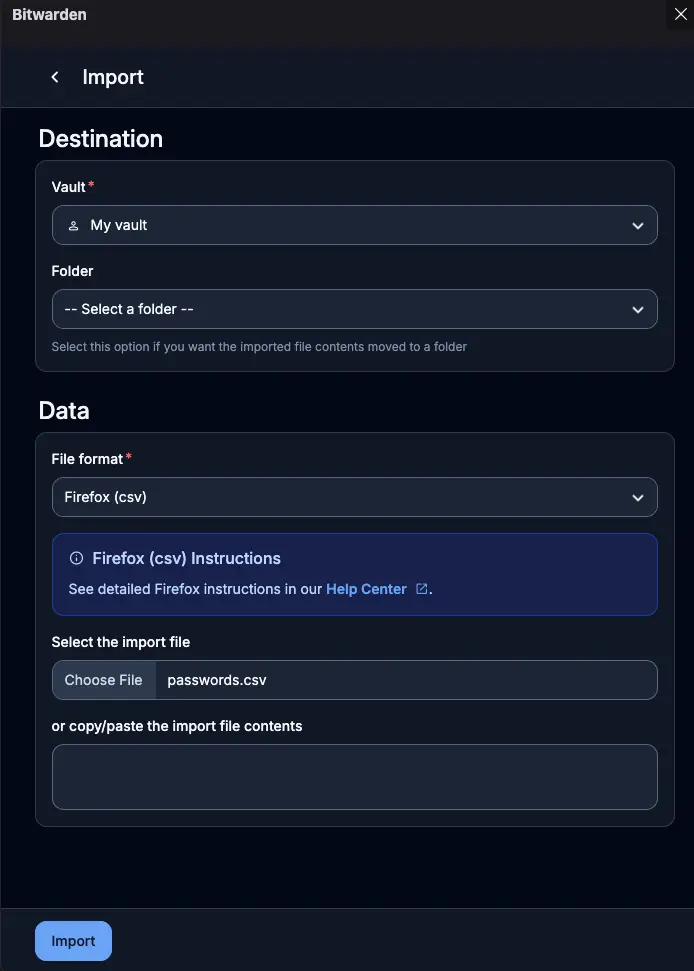
Importing into Bitwarden#
- Log into the Bitwarden Web Vault.
- Navigate to Tools –> Import Data.
- Select Firefox (csv) as the format, upload your file, and click Import Data.
Bitwarden Authenticator Setup#
Migrating 2FA Seeds from Aegis to Bitwarden#
If you are transitioning your 2FA seeds from Aegis Authenticator to the Bitwarden Authenticator app:
- Export from Aegis: Open Aegis –> Settings –> Import & Export –> Export –> Select Aegis (JSON) format (exported as unencrypted plain text or decrypted JSON).
- Import into Bitwarden Authenticator: Open Bitwarden Authenticator –> Settings –> Data: Import –> Select the Aegis (.json) file.
- Enable Cloud Sync: Open Bitwarden Password Manager –> Settings –> Account Security –> Toggle on Allow authenticator syncing.
- Configure Default Save Location: Inside Bitwarden Authenticator –> Settings –> Set Default save option to Save to Bitwarden.
- Move Local Codes to Vault: For any TOTP keys previously stored locally:
- Long-press the code under Local Codes –> Select Copy to Bitwarden vault.
- (Optional) Assign or create a dedicated folder (e.g.,
TOTP) inside your vault to keep your 2FA entries organized.
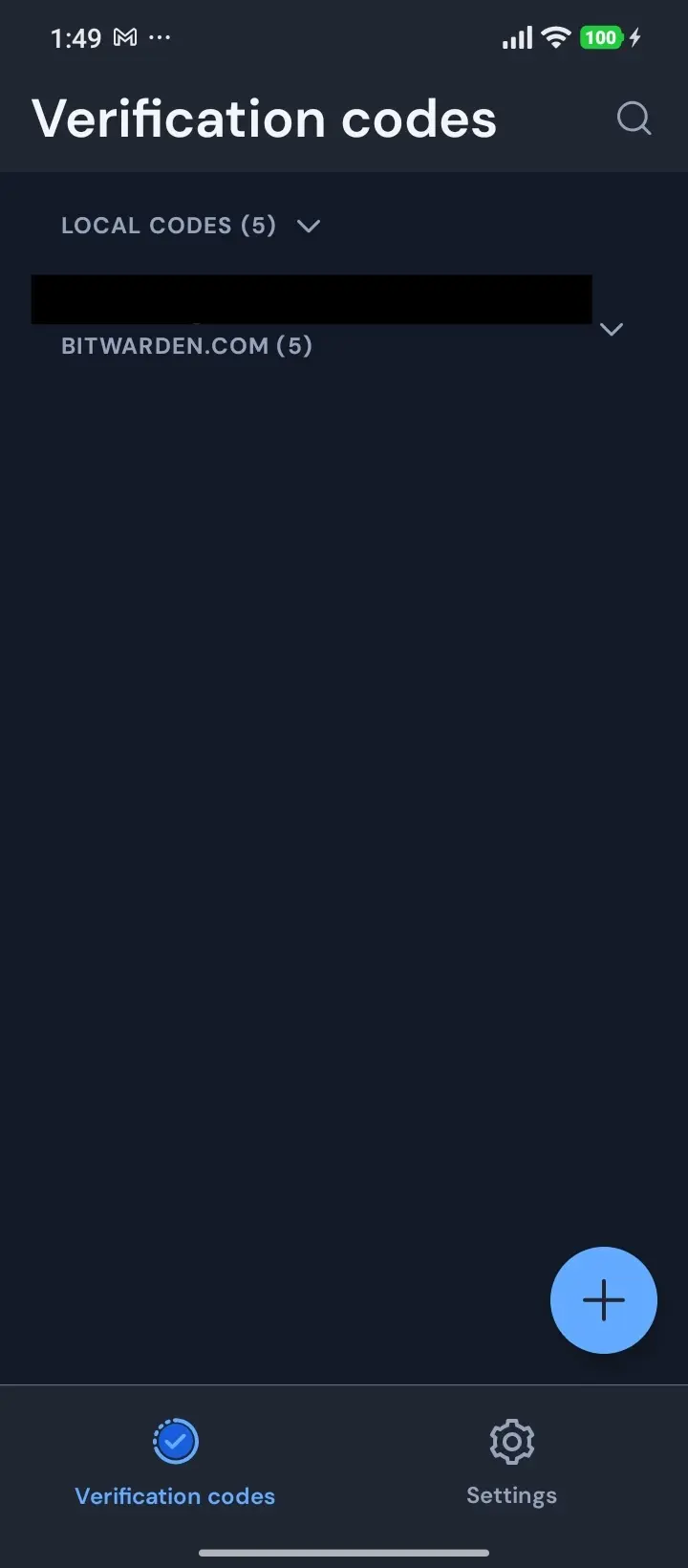
Once complete, verify that the total item count in Bitwarden Authenticator matches your Aegis setup:
Managing Dual Authenticators on Android
If you choose to run Aegis and Bitwarden Authenticator concurrently, you can scan new service 2FA QR codes into both apps simultaneously or export an unencrypted Aegis JSON backup periodically to keep Bitwarden updated.
Self-Hosting a Bitwarden Server#
Bitwarden’s open-source architecture allows self-hosting for complete data sovereignty, eliminating reliance on third-party cloud infrastructure while retaining 100% compatibility with official client apps and browser extensions.
Official Bitwarden vs. Vaultwarden#
| Aspect | Official Bitwarden Server | Vaultwarden (Recommended for Homelabs) |
|---|---|---|
| Backend Implementation | C# / .NET (Multi-container stack with MSSQL) | Single lightweight binary written in Rust |
| Idle Memory Footprint | ~1.5 GB – 2 GB RAM | ~30 MB – 50 MB RAM |
| Deployment Complexity | High (Requires installer script & multiple containers) | Extremely Low (Single Docker container) |
| Paid Features (TOTP/Attachments) | Gated behind paid license keys | Fully unlocked out-of-the-box for free |
| Ideal Target | Enterprises requiring SSO, SCIM, & compliance audits | Individuals, family setups, and homelab environments |
Deployment Considerations#
- HTTPS Enforcement: Bitwarden mobile apps and extensions strictly require a valid TLS/SSL certificate (via Let’s Encrypt, Cloudflare Tunnel, or local CA) due to browser WebCrypto security rules.
- Backups: Because encryption happens client-side, server-side data loss is catastrophic without regular, automated off-site backups of the server database (
sqlite3database or volume data). - Tailscale Serve: a built-in Tailscale CLI tool that acts as a local reverse proxy, exposing web applications, services, files, or directories directly to your private Tailnet (
.ts.net).