After installing Armbian following A complete step-by-step guide to running Armbian Linux on an Amlogic S905W X96 Mini TV Box, I realized that moving the X96 Mini onto my desk is much more convenient—even without a wired Ethernet cable. However, wireless networking does not work out of the box on the X96 Mini, an issue noted by other users as well: Armbian on X96 mini (S905w) and wifi drivers.
Checking my hardware setup, the SoC is an Amlogic S905W and the Wi-Fi chip is an SV6051P. I found a community thread addressing this exact chip: (FIX) SV6051/P WIFI DRIVERS FOR ARMBIAN. Let’s walk through trying that solution and debugging what breaks on modern kernels.
Initial Installation Attempt#
The original instructions from SV6051P-WiFi-driver-S905W-X96-mini on GitHub outline the following workflow:
1. Install Prerequisites and Kernel Headers#
Optionally upgrade Armbian and reboot:
sudo armbian-upgrade
sudo reboot
Update the package list and install the build tools, DKMS framework, and matching kernel headers:
sudo apt update
sudo apt install -y build-essential dkms linux-headers-$(uname -r)
Alternatively, install headers via armbian-config under System > Kernel > Headers:
armbian-config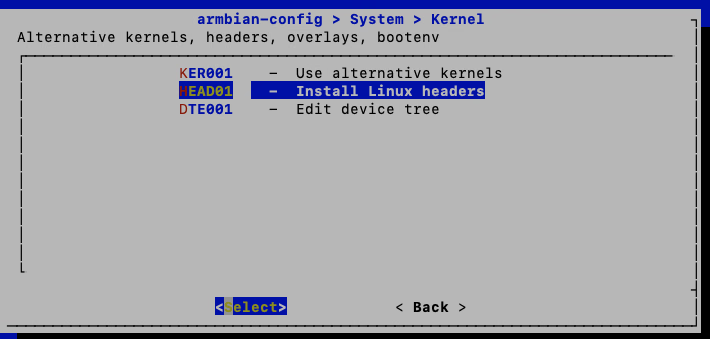
uname -r DoesIn Debian and Ubuntu-based systems, kernel header packages follow the format linux-headers-<kernel-version>. Running uname -r outputs your currently active kernel version.
2. Download the Release Archive#
wget https://github.com/rayhanorigin/SV6051-SV6051P-WiFi-driver-for-Amlogic-S905W-X96-Mini-with-DKMS-support/releases/download/1.0/ssv6051-20260702.tar.gz3. Extract and Enter the Directory#
tar -xzf ssv6051-20260702.tar.gz
cd root
4. Execute the Install Script#
sudo ./restore-ssv6051.sh5. Verify#
lsmod | grep ssv
ip link
Debugging the Build Process#
1. Kernel Update Considerations#
Around the time I ran these commands, two notable Debian/Ubuntu security advisories were disclosed: CVE-2026-109518 (APT traffic manipulation) and CVE-2026-98432 (IPv4 TCP remote code execution). Updating the kernel manually can be challenging for beginners, so I used the built-in helper script included with ophub/amlogic-s9xxx-armbian:
sudo armbian-updateUpdating the kernel carries the risk of rendering the device unbootable if incompatible dtb/boot files are flashed.
2. Missing Header Package & Initial Compilation Failure#
When installing prerequisites, build-essential and dkms succeeded, but apt could not find the header package:
Error: Unable to locate package linux-headers-6.12.117-ophub
Error: Couldn't find any package by glob 'linux-headers-6.12.117-ophub'
Trying through armbian-config also returned an error:
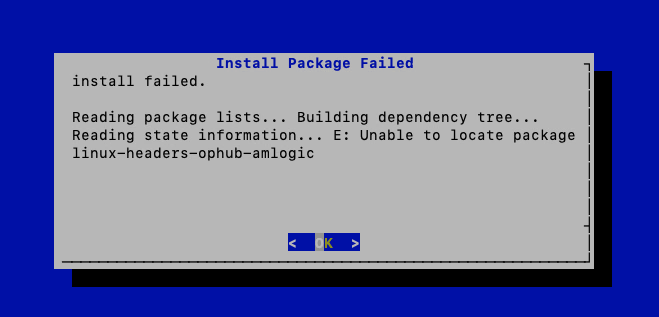
Uncertain whether the headers were already bundled with the armbian-update kernel image, I proceeded anyway. Notably, extracting the tarball created a directory named root rather than ssv6051-20260702. Running sudo ./restore-ssv6051.sh inside it immediately failed:
Extracting driver source...
Adding to DKMS...
Creating symlink /var/lib/dkms/ssv6051/1.0/source -> /usr/src/ssv6051-1.0
Building driver...
The kernel is built without module signing facility, modules won't be signed

Building module(s).......(bad exit status: 2)
Failed command:
make -j4 KERNELRELEASE=6.12.117-ophub -C /lib/modules/6.12.117-ophub/build M=/var/lib/dkms/ssv6051/1.0/build modules

Error! Bad return status for module build on kernel: 6.12.117-ophub (aarch64)
Consult /var/lib/dkms/ssv6051/1.0/build/make.log for more information.
...
modprobe: FATAL: Module ssv6051 not found in directory /lib/modules/6.12.117-ophub
❌ Failed to load. Check: dmesg | tail -20
Inspecting the build log revealed the root cause:
sudo cat /var/lib/dkms/ssv6051/1.0/build/make.logDKMS (dkms-3.2.2) make.log for ssv6051/1.0 for kernel 6.12.117-ophub (aarch64)
Building module(s)
# command: make -j4 KERNELRELEASE=6.12.117-ophub -C /lib/modules/6.12.117-ophub/build M=/var/lib/dkms/ssv6051/1.0/build modules
make: Entering directory '/usr/src/linux-headers-6.12.117-ophub'
...
/var/lib/dkms/ssv6051/1.0/build/ssvdevice/ssvdevice.c:25:10: fatal error: ssv_cfg.h: No such file or directory
25 | #include "ssv_cfg.h"
| ^~~~~~~~~~~
compilation terminated.
/var/lib/dkms/ssv6051/1.0/build/hci/ssv_hci.c:22:10: fatal error: ssv6200.h: No such file or directory
22 | #include <ssv6200.h>
| ^~~~~~~~~~~
compilation terminated.
/var/lib/dkms/ssv6051/1.0/build/ssvdevice/ssv_cmd.c:22:10: fatal error: ssv6200_reg.h: No such file or directory
22 | #include <ssv6200_reg.h>
| ^~~~~~~~~~~~~~~
compilation terminated.The headers were present at /usr/src/linux-headers-6.12.117-ophub (installed automatically by armbian-update), so the issue was actually in the driver’s Makefile.
3. Fixing the Makefile Include Paths#
The legacy Makefile had two issues during out-of-tree DKMS builds:
KBUILD_TOP := $(shell pwd)resolved to the temporary build directory rather than the source directory. In Kbuild,$(src)must be used instead.- When Kbuild compiles C files in subdirectories (
ssvdevice/,hci/,smac/), it does not automatically search sibling directories for headers likessv_cfg.handssv6200.h.
Navigate to the DKMS source directory and update Makefile so KBUILD_TOP := $(src) and all subdirectories are explicitly included in EXTRA_CFLAGS / ccflags-y:
cd /usr/src/ssv6051-1.0KBUILD_TOP := $(src)
EXTRA_CFLAGS := -I$(KBUILD_TOP) -I$(KBUILD_TOP)/include -I$(KBUILD_TOP)/ssvdevice -I$(KBUILD_TOP)/hci -I$(KBUILD_TOP)/smac
Then rebuild via DKMS:
sudo dkms remove -m ssv6051 -v 1.0 --all || true
sudo dkms add -m ssv6051 -v 1.0
sudo dkms build -m ssv6051 -v 1.0
sudo dkms install -m ssv6051 -v 1.0
4. Patching Linux Kernel 6.12+ API Mismatches#
With the include paths fixed, make.log surfaced two C-level kernel API mismatches introduced in Linux 6.12:
sudo cat /var/lib/dkms/ssv6051/1.0/build/make.logtimer_container_ofError (smac/init.c:326): Kernel 6.12 updated how timers reference their parent structures, replacing legacy timer macros with standard container macros (ssv6200_watchdog_timeout).ieee80211_hwConfig Signature Mismatch (smac/dev.c:3170): Thenet/mac80211subsystem removed theint radio_idxparameter from the.configcallback prototype:static int ssv6200_config(struct ieee80211_hw *hw, u32 changed)
To patch these directly in /usr/src/ssv6051-1.0:
sudo nano /usr/src/ssv6051-1.0/smac/init.c
sudo nano /usr/src/ssv6051-1.0/smac/dev.cIn smac/dev.c, radio_idx was removed from ssv6200_config. In smac/init.c, ssv6200_watchdog_timeout was updated to match the modern timer container API.
5. Successful Build and Module Verification#
After iterative patching and rebuilding with DKMS, the compilation succeeded:
Creating symlink /var/lib/dkms/ssv6051/1.0/source -> /usr/src/ssv6051-1.0
The kernel is built without module signing facility, modules won't be signed
Building module(s)............................ done.
Installing /lib/modules/6.12.117-ophub/updates/dkms/ssv6051.ko
Running depmod.... done.
Load the compiled kernel module and verify that wlan0 appears:
sudo modprobe ssv6051
lsmod | grep ssv
ip link show wlan0
Setting Up the Wireless Connection#
1. Bring Up wlan0 and Connect#
Enable the wireless interface:
sudo ip link set wlan0 upConnect using the interactive terminal UI (nmtui):
sudo nmtui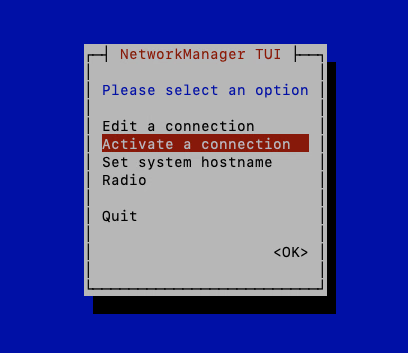
Select Activate a connection, choose your Wi-Fi SSID, and enter your password:
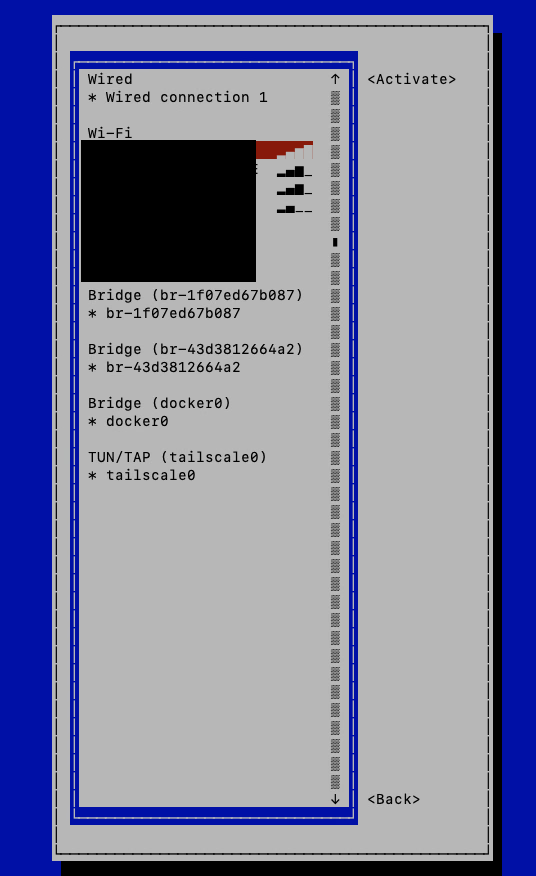
Alternatively, connect directly via nmcli:
sudo nmcli dev wifi connect "SSID" password "PASSWORD"2. Ensure Auto-Reconnect After Reboot#
Out-of-tree drivers often fail to reconnect after a reboot if the module does not auto-load or if NetworkManager’s autoconnect flag is disabled:
- Verify the module loads on boot (or add
ssv6051to/etc/modules). - Enable
autoconnecton your saved NetworkManager profile:sudo nmcli connection modify "SSID" connection.autoconnect yes - Reboot to verify persistence:
sudo reboot
armbian-config vs. nmcliWhile armbian-config provides a convenient menu for basic network setup, nmcli offers finer control over connection properties like connection.autoconnect.
Side Note: SSH Config Priority & Network Handoffs#
Once the Ethernet cable was disconnected and the device transitioned to Wi-Fi, existing SSH shortcuts occasionally failed to connect. I discovered that OpenSSH prioritizes matching Host aliases in ~/.ssh/config strictly. If your configuration hardcodes a specific wired IP address, SSH will attempt to route through the disconnected interface rather than automatically rolling over to wireless or Tailscale endpoints.
While updating the HostName manually or connecting directly to the Tailscale IP address works as a temporary workaround, OpenSSH does not natively support automatic IP fallback within a single Host block out of the box.
OpenSSH’s ~/.ssh/config lacks built-in fallback rules between distinct IP addresses under one alias without external proxy routing.
To eliminate manual configuration tweaks every time you move the device between a wired desk setup and wireless operation, you can implement an automated Netcat probing chain using ProxyCommand. For a complete step-by-step implementation guide, check out SSH Fallback Hostname Fix.
How DKMS Manages Workspaces#
Understanding the three directories DKMS uses explains why patches must be applied in /usr/src/ rather than a home folder (~) or the build directory:
- Global Source Tree (
/usr/src/ssv6051-1.0): The master source directory registered bysudo dkms add. All code edits and kernel 6.12 patches (smac/init.c,smac/dev.c,Makefile) must live here. - Isolated Build Directory (
/var/lib/dkms/ssv6051/1.0/build): A temporary workspace generated duringsudo dkms build. DKMS copies a fresh snapshot from/usr/src/ssv6051-1.0here before invokingmake. Any manual edits inside/var/lib/dkms/will be wiped out on the nextdkms removeordkms add. - Kernel Module Destination (
/lib/modules/6.12.117-ophub/updates/dkms/): Wheresudo dkms installplaces the compiledssv6051.kobinary somodprobecan load it into the running kernel.
The Four-Step DKMS Lifecycle#
sudo dkms remove -m ssv6051 -v 1.0 --all— Removes installed.kobinaries and deletes/var/lib/dkms/ssv6051/1.0.sudo dkms add -m ssv6051 -v 1.0— Registers the source tree from/usr/src/ssv6051-1.0.sudo dkms build -m ssv6051 -v 1.0— Copies source files to/var/lib/dkms/.../buildand compiles against/lib/modules/$(uname -r)/build.sudo dkms install -m ssv6051 -v 1.0— Installsssv6051.kointo/lib/modules/$(uname -r)/updates/dkms/and runsdepmod.
Result & Patched Repository#
With the driver patched and registered under DKMS, the X96 Mini now connects reliably over Wi-Fi and can be placed anywhere on my desk without an Ethernet tether.
Because the upstream archive required manual extraction and lacked kernel 6.12 fixes, I published a clean, pre-patched Git repository ready for direct cloning and DKMS installation:
⚠️ Warnings & Disclaimer#
- Testing: This driver has not been exhaustively tested across all different wireless use cases and hardware revisions.
- Kernel Stability: Future Linux kernel updates may introduce breaking changes that could break this driver installation. No guarantees are made for future kernel versions.
- Support: Since I am continuously learning Linux systems programming, if you run into unique issues, searching community forums or consulting LLM tools is recommended for troubleshooting.